Stay up to date with latest news about technology, food, fashion, games, business and everything else that you need.

Showing posts with label PHOTOGRAPHY. Show all posts

Thursday, May 17, 2018

ACDSee Photo Studio Ultimate 2018 Guide for Beginners

https://ift.tt/2IhjQ93

ACDSee Photo Studio Ultimate 2018 was released recently and it has a lot of options included in a single software program. It offers a combination of features covered by the likes of Lightroom, Bridge, and Photoshop in one setup at a competitive price.

ACDSee Photo Studio Ultimate 2018 Guide for Beginners

Depending on your skill level, it caters to beginner through to advanced users. This new 2018 version combines previously standalone programs into one with some new features added. Development for future versions is also underway, so it’s an option that is undergoing improvement.

For the purposes of this article, I will be using Lightroom and Photoshop as the basis for comparison as those are the tools I currently use.

Let’s work through the usual steps that this software would be used for, from the point of view of a beginner photographer and someone new to the software as well.

Contents

  1. Setting up the program
  2. Basic layout
  3. Import images
  4. Raw image editing
  5. Edit mode with layers, etc.
  6. General comments

1. Setup and Install

Setup and installation are fairly standard. You are required to set up an account as part of the install process (I tried to skip out of it but it canceled the Install when I did) which then requires an extra registration step with an email confirmation. However, once that is done there are no other impediments to using or starting up the program.

It does allow you to choose which drive/directory/folder you want to install it into as well if you want to use a non-standard install path.

2. Basic Layout

ACDSee Photo Studio Ultimate 2018 Guide for Beginners

Basic layout when the software first opens.

This is the default setup upon opening up the program. It’s set to view the Pictures Library and is in Manage Mode. The modes are on the right-hand side at the top of the screen and take you to the different functions available. The Modes we will be looking at in detail are Manage, Photos, View, Develop and Edit in this article.

ACDSee Photo Studio Ultimate 2018 Guide for Beginners

Catalog tab where you can view images which have been rated or labeled or by other categories.

On the left-hand side under the File menu, are three tabs. First is the Folders tab which is the default file structure. Next is the Catalog tab which appears to allow you to view/sort images that have been rated with numbers or colors. It did pick up the color labels I had previously applied to images within Lightroom, which was interesting.

By going back to the Folder tab to select the folder and bring up the images, you can then go back into Catalog. If you select an image you are then able to rate it with a number or color.

ACDSee Photo Studio Ultimate 2018 Guide for Beginners

Manage mode with a folder of images loaded up for viewing.

View and Manage Modes

Back in the Folders tab in Manage Mode, if you select an image it comes up with EXIF data and a histogram in the bottom left panel.  The right-hand panel pops up with all the metadata and also allows you to rate the image there as well.

ACDSee Photo Studio Ultimate 2018 Guide for Beginners

Photos mode offers three different ways to view your images. In the bottom right-hand corner it has three numbers; 7, 31, and 365 – these allow you to sort by week, month or year. The above image shows the images sorted by year. You can scroll visually through all your images.

While you can move easily between Photos and Manage Modes. But if you want to go to View mode you have to click on an image within Photos Mode to open it. Double-clicking on an image in Photos mode will automatically open it in View Mode.

view mode - ACDSee Photo Studio Ultimate 2018 Guide for Beginners

View Mode default layout.

View Mode is similar to Adobe Bridge, where you have a filmstrip to view images at the bottom and some basic edit functions on a toolbar on the left just above the thumbnails.

Given that at this point in time no image editing has happened, and the tools are basic automated functions, you may not want to do anything here.

Develop Mode

ACDSee Photo Studio Ultimate 2018 Guide for Beginners

Develop Mode default layout with the editing panel on the left

Develop Mode is the Raw Editor. It is laid out very similar to Lightroom except the edit panel is on the left.  However, it can be customized and moved to the right if you prefer.

Edit Mode

ACDSee Photo Studio Ultimate 2018 Guide for Beginners - develop mode

Edit mode with workspace modified slightly – the Layers panel is on the right

Edit Mode is the advanced edit functionality. This is where you find layers, masks, text, and other features generally found in Photoshop. The tool palette on the left-hand side originally went along the top of the image but I moved it.

The 365 mode offers options for subscription licensing which is probably not relevant if you bought the perpetual license.

The Dashboard Mode

ACDSee Photo Studio Ultimate 2018 Guide for Beginners

Dashboard Mode default layout.

The Dashboard Mode offers interesting ways of interrogating your database for information – how many files you have, what camera is used most often. It doesn’t appear to be editable beyond the data it provides so you can’t find out things like your most commonly used lens focal lengths or apertures.

The last mode is a Message Center. I had no messages to view.

In summary – there are three different ways to view your images, a raw editor, an advanced editor and other functions of less relevance.

3. Importing Images

As I have been a Lightroom user since LR3, I have several years of images already stored on my computer. I store my image files on a NAS (Network Attached Storage) so I was interested to see if they would be found and accessible, as some programs have issues with NAS functionality.

The good news is ACDSee happily found the images on my NAS and I was impressed at how quickly it loaded them up for preview. It was significantly faster than LR usually imports images and loads previews.

ACDSee Photo Studio Ultimate 2018 Guide for Beginners

Manage Mode showing the network with the NAS folders viewable.

Therefore doing an image import test was also necessary.

File > Import >From Device found my CF card plugged into my computer and an Import Panel allowed a preview of the images, selection of images, destination choice, and file renaming. Again the image preview was very quick.

ACDSee Photo Studio Ultimate 2018 Guide for Beginners

Import image panel in ACDSee Photo Studio Ultimate 2018.

On clicking Import, a light grey box opened up in the bottom right-hand corner, with a progress bar and it flicked through all the images as it was importing them. I imported 28 images and it took less than a minute.

Once it’s finished you are asked if you want to view the imported images. Clicking Yes takes you to the image folder for viewing all the images.

4. Raw Image Editing in Develop Mode

ACDSee Photo Studio Ultimate 2018 Guide for Beginners

Unedited RAW file.

Develop Mode is laid out very much like Lightroom. The editing panel by default is on the left-hand side but I moved it over to the right as that is my preference. The histogram is visible with the different elements of it in different colors, but you can’t click on them and move/edit them within the histogram itself.

The main edit panel is Tune, and the others are Detail (sharpness, noise reduction), Geometry (perspective, lens corrections, and crop) and Repair (Heal and Clone).

It’s not entirely obvious but the white bits with the triangle out the bottom are the sliders, and you move them to make your adjustments. You can also change the numbers or click on the arrows. It does not appear to reset to zero if you double click on the bar as the whole bar is active.

ACDSee Photo Studio Ultimate 2018 Guide for Beginners

Image after edits applied.

The above image has been edited with the settings visible, plus a few other panels. In general, I found it a bit more aggressive than LR would be in comparison so if you prefer a more subtle approach, be delicate with your application of the sliders.

The main blueberry in my image had a mark on the front so I decided to test out the Heal function. While it was a bit slow to apply and appeared to do it in stages, I was quite surprised at how well it worked. Upon viewing at 100%, there are some blue color blotches that would look a bit unnatural if this image was printed, but to the casual glance (or online viewing) it’s not obvious this image had been healed. A much better job than my LR6 can do.

ACDSee Photo Studio Ultimate 2018 Guide for Beginners - heal tool

Image before Heal applied and scratch visible – viewed at 100%

ACDSee Photo Studio Ultimate 2018 Guide for Beginners

Image after several brush strokes of Heal applied – viewed at 100%.

I also experimented with other things in the Develop Mode. There is an option to copy and paste settings between images, you can apply a vignette, and tweak its settings.

To save the image there are several options. Done opens up a dialog box to Save or Save As like a standard file-save function in Windows. Save gives you a drop-down box to Save As, Save a Copy, or Export.

The Export option opens up this window which allows you to choose things like destination, change the name, format, and size. Similar to the standard Export functionality in Lightroom.

ACDSee Photo Studio Ultimate 2018 Guide for Beginners

Export images panel.

5. Edit Mode – Layers and other options

ACDSee Photo Studio Ultimate 2018 Guide for Beginners

Edit mode with an image open for editing.

Edit Mode is where you can do the kind of editing for which Photoshop is often used. It has support for Layers, Masks, Adjustment Layers, Text, etc. I moved a few panels around to make the workspace more familiar but otherwise, the above screenshot shows the basic Edit Mode setting.

One of the new features of Edit Mode is the Actions – which seem to be a combination of LR Presets and PS Actions. They are only available in Edit Mode under Tools. There are several different categories and a Preview Browser offers an idea of what the final outcome will be.

ACDSee Photo Studio Ultimate 2018 Guide for Beginners

Actions browser showing a preview of the effects.

To apply hit Play. The effect is applied directly to the base layer which is a bit limiting as you cannot edit the effect in any way and it is applied with quite a lot of enthusiasm. Adding a blank layer and applying to that didn’t work, which was a shame as you could have applied edits to the action layer that way.

ACDSee Photo Studio Ultimate 2018 Guide for Beginners

Image after Grunge Action applied.

For comparison, I edited my image manually by adding a couple of texture layers and masked off the heavy texture with a soft brush to have a more gentle effect.

ACDSee Photo Studio Ultimate 2018 Guide for Beginners

An alternative version of the image with some grunge texture layers manually added, adjusted individually, and heavy texture masked off to soften the overall outcome.

One limitation in adding texture layers manually was not being able to drag them across from an open instance of Windows Explorer, which I can do with Photoshop.

Once you’re ready to save the file you have File>Save/Save As/Save as a Copy/Export to choose from.

6. General Comments

Looking at this from a beginner’s perspective, someone new to photography and new to editing, ACDSee Photo Studio Ultimate 2018 has a lot of benefits:

  • It’s available as a perpetual standalone license or a subscription.
  • It offers image management, RAW editing, and advanced editing features.
  • For a novice, it has all the functionality you are likely to need in one program.
  • Image editors are not the easiest programs to learn and use but this doesn’t make it any more complicated.
  • It looks familiar in comparison with other popular programs in the market.

As an advanced user of both Lightroom and Photoshop, there are a few things that I’d prefer worked differently as follows:

  • Visually the dark grey tone in the background is darker than I prefer and I was unable to easily find an option to change it.
  • When adding other images or textures, it’s easier to find them in a second monitor via Windows Explorer and drag it onto my image – this is easy to do in Photoshop but ACDSee didn’t allow it in the Develop mode, only in Layers. It does have an “Add a File as a Layer” button which is a good workaround.
  • In Develop Mode I was able to select a second monitor for viewing my image, but it stayed static on the original image view and didn’t reflect any of the changes I made to the image which was a bit baffling.
  • If you are in Edit mode and have applied Layers to the image you cannot go back into Develop mode unless you save the flatten it. Not a really a complaint, just that it works a bit differently than I was expecting.

Conclusion


The full price of ACDSee Photo Studio Ultimate 2018 is $149.99 USD for the standalone perpetual license and there is also a free 30-day trial. It also offers a monthly (or annual) subscription which allows use on up to five devices, updates, and cloud storage as an alternative. Prices for the subscription vary depending on Personal or Business use.

At less than $100 USD for an upfront one-off cost, it offers an image management feature, a RAW image editor with a lot of features and functionality and advanced editing via layers, masks, adjustment layers and other extras.

For a beginner to either photography or editing, there is a lot on offer with ACDSee Photo Studio Ultimate 2018. Yes, it has some quirks and annoyances in comparison to other programs but nothing that renders it difficult to use (unless your eyesight is bad).

As a package to get a beginner started and provide everything you are likely to need, this is a competitive software solution for the general purpose user. Strong contender both on price and the fact it offers everything you are likely to need in one place, making it consistent and easy for a beginner to use and manage.

Disclaimer: ACDsee is a dPS advertising partner.

The post ACDSee Photo Studio Ultimate 2018 Guide for Beginners appeared first on Digital Photography School.


PHOTOGRAPHY

PHOTOGRAPHY

via Digital Photography School https://ift.tt/29wB9CX

May 15, 2018 at 05:04PM
Monkey Selfie Saga to Become Movie

https://ift.tt/2GiSKbE

Many of you may have read our account of the hopefully finished monkey selfie saga. But if you haven’t you can give it a read by clicking here.

Basically, photographer David Slater found himself in court with a monkey that used his camera to snap a selfie. At first, Slater seemed to lose the rights to the selfie to Naruto the monkey but then the 9th Circuit Court of Appeals in the United States overturned that ruling and returned the rights to Slater.

A quick glance at any comments section on this story quickly reveals the varied reactions everyone has had to the story in the community: Ranging from disgusted to puzzled to those of us who appreciate the absurdities of life, the Naruto/Slater saga seems to be at an end, at least in the real world as Slater has reportedly optioned the rights to a dramatic film depiction of the Naruto monkey selfie saga.

This deal probably comes as a boon for embattled photographer Slater who has claimed the three-year saga has bankrupted him.

Conde Nast, the publisher of Vogue and Vanity Fair, often commissions films of topical news stories but, the securing the rights to the monkey selfie story was apparently done in rapid time. One of 40 films currently in development at Conde Nast, Dawn Ostroff and Jeremy Steckler are in the process of finding writers for the proposed film according to FStoppers.

So what’s next for Naruto and David Slater? Potentially the big screen, or perhaps another run in court if People for the Ethical Treatment of Animals decides to appeal the appeal. The story has proven to be a touchstone for many photographers and animal rights activists, simultaneously drawing attention to both copyright law and animal preservation efforts at the same time.

Of course, we’ll keep you updated on this story as new chapters unfold.

The post Monkey Selfie Saga to Become Movie appeared first on Light Stalking.


PHOTOGRAPHY

PHOTOGRAPHY

via Light Stalking https://ift.tt/2kwTW5i

May 15, 2018 at 06:00PM
How to Choose the Perfect Macro Lens

https://ift.tt/2IIvhpG

A common question among those starting out in macro photography is, “What lens should I choose?” Given the number of options, this is difficult to answer and depends on a number of factors (physical requirements, budget, subject, style, etc.). There is no one ideal macro lens. However, this article will provide a guide to choosing the ideal macro lens for your needs, focusing on three main considerations: focal length, image quality, and price.

macro photography abstract hibiscus - How to Choose the Perfect Macro Lens

A Note About Image Quality

When it comes to choosing lenses, photographers often focus on image quality, especially sharpness.

I am happy to tell you that, for macro photography, this is generally less of an issue. Why? Macro lenses are incredibly sharp. Even lenses on the lower end of the price spectrum offer professional-level sharpness, especially when stopped down slightly. I have used a half-dozen macro lenses over the course of my photography career, and I have never been dissatisfied with the level of sharpness.

However, this does not mean that low-end macro lenses are indistinguishable from the pricier options. Expensive macro lenses do often provide better sharpness and bokeh.

macro photography flower abstract - How to Choose the Perfect Macro Lens

Furthermore, cheaper macro lenses do sometimes have problems with chromatic aberration (generally purple and yellow fringing that occurs in the high contrast parts of images). This can be corrected with post-processing, but I prefer to avoid chromatic aberration whenever I can. When I discuss different lenses below, I note any chromatic aberration problems that I’ve experienced.

Focal Length

I will center this discussion around focal length; this is an easy way of narrowing down potential macro lenses because focal length often determines and limits your macro photography options.

Macro lenses can be classified into three focal-length categories: short (35-60mm), mid-range (90-105mm), and long (150-200mm).

The Short Macro Lens

  • Pros: Lightweight and inexpensive.
  • Cons: Less impressive bokeh, short working distance (bad for insects).
dahlia abstract macro photography flower - How to Choose the Perfect Macro Lens

I took this dahlia image using a short macro lens, the Nikon 60mm f/2.8D.

Short macro lenses tend to be used for more casual macro outings, or as “all-purpose lenses” that you switch to macro when needed. They’re easy to store, easy to carry, and pretty inexpensive. They’re also easier to hand-hold because of their small size.

However, a big drawback with short macro lenses is the short working distance. Working distance refers to the distance from the end of the lens to the subject. In order to do high magnification photography with, say, a 60mm macro lens, the subject has to be extremely close to the lens. This can cause problems. First of all, insects generally require a bit of distance when photographed, so getting close often isn’t an option.

macro photography tulip abstract flower - How to Choose the Perfect Macro Lens

This tulip photograph was taken with a Nikon 60mm f/2.8D.

Additionally, your head (or your camera) might cast an unwanted shadow onto the subject, depending on the lighting conditions. Shorter lenses also tend to have less pleasing bokeh.

However, if you are looking to do casual macro photography with more portable equipment and strong image quality, then a shorter macro lens might be just the thing for you.

If you’re a Canon shooter on a budget, you should look at the Canon 60mm f/2.8 (at $399)or the Canon 35mm f/2.8 IS (at $349). The latter offers image stabilization, which can often be quite useful for handheld macro photography. For Nikon photographers, look at the Nikon 40mm f/2.8G (only $225).

How to Choose the Perfect Macro Lens - tulip macro photo

Another tulip photograph that was taken with the Nikon 60mm f/2.8D.

If you’re a photographer with a bit more to spend, you should consider the Nikon 60mm f/2.8G (at $596) or the Tamron 60mm f/2.0 for Nikon ($524) and for Canon ($524).

Finally, you might consider the Nikon 60mm f/2.8D (at $517). This lens is near and dear to my heart because it was the first macro lens I ever purchased. I was always quite impressed by its sharpness. It is worth noting that the autofocus is quite slow, but I always use manual focus when shooting macro (and you probably should, too!), so this was not a problem.

60mm nikon macro photography tulip flower - How to Choose the Perfect Macro Lens

A final photograph with the Nikon 60mm f/2.8D.

Mid-Range Macro Lenses

  • Pros: Larger working distance, somewhat inexpensive, very good bokeh, lightweight.
  • Cons: Working distance still fairly short.
macro photography abstract purple flower - How to Choose the Perfect Macro Lens

A flower image that was taken at 105mm.

Mid-range macro lenses are my personal favorite among the macro options. They are a great option for flower photography, especially more abstract level flower photography like I tend to do. Why?

First of all, these lenses are relatively lightweight, which means that I can hand-hold them without much trouble at all, even in low light. This allows for much greater flexibility.

Second, a mid-range macro lens offers a perfect working distance for flower photography. I like to get very close to the flowers that I am photographing. Not so close that I am nearly touching the flower, but not so far that other flowers, leaves, and branches get in the way.

macro photography Canon 100mm f/2.8L rose abstract - How to Choose the Perfect Macro Lens

A rose image which was taken with the Canon 100mm f/2.8L.

Third, these lenses offer high-quality optics for what is often a very low price. For example, the Tamron 90mm f/2.8, (which is generally the least expensive of these mid-range macro lenses at $649), affords images with outstanding sharpness and bokeh.

If you desire to do insect photography, or if you often photograph with a tripod and want the increased image quality of a 150-200mm, I would recommend looking at a longer macro lens. However, if you are interested in doing handheld flower photography or if you’re on a budget but want a more dedicated macro lens, I recommend one of those mid-range lenses mentioned above.

First among the less expensive options is the aforementioned Tamron 90mm f/2.8 for Nikon and for Canon. At one point in time, this was my workhorse lens. While I had occasional issues with chromatic aberration, the sharpness, bokeh quality, and price more than made up for it. Another option around this price-point is the Tokina 100mm f/2.8 for Nikon and for Canon.

daisy abstract macro photography bokeh - How to Choose the Perfect Macro Lens

This daisy image was taken with the Tamron 90mm f/2.8 (non-VC) lens. I love the bokeh this lens produces.

Looking toward medium-level prices: the Canon 100mm f/2.8 Macro USM gets great reviews, as does the upgrade of the previously mentioned Tamron 90mm f/2.8, which has been modified to offer vibration compensation technology. Sigma also offers the 105mm f/2.8 macro with optical stabilization.

Finally, on the pricier side, we have the Nikon 105mm f/2.8G VR ($896) and the Canon 100mm f/2.8L IS ($749), both of which offer vibration reduction/image stabilization.

I must say, if I had to pick one lens to use foreverout of all the lenses that I’ve owned or even held in my handsit would be the Canon 100mm f/2.8L. It’s pin sharp, the image stabilization allows for shooting handheld in low light, and the bokeh is a dream come true.

Long macro lenses

  • Pros: Best working distance, generally excellent bokeh and image quality.
  • Cons: Heavy, often very expensive.
macro photography abstract dandelion Sigma 150mm - How to Choose the Perfect Macro Lens

I took this high magnification image with the Sigma 150mm f/2.8 (non-OS).

Longer macro lenses tend to have astonishingly good image qualityfor a (generally hefty) price. The bokeh and sharpness on the Sigma 150mm f/2.8 (for $1099), for instance, is excellent.

macro photography aster abstract bokeh Sigma 150mm macro - macro lens

I’m very impressed with the bokeh offered by the Sigma 150mm f/2.8 macro lens.

These lenses also offer the best working distance of the bunch, which is often essential for insect photography.

Another advantage of the longer working distance is the ability to use a creative macro technique: shooting through out of focus flowers.

sunflower abstract macro photography Sigma 150mm macro lens

A third image was taken with the Sigma 150mm macro. I shot through several other flowers to give this image a colorful wash.

Yet these lenses are quite heavy, which makes hand-holding for long periods difficult, and doing so in low light nearly impossible. You’ll want to consider these lenses if you wish to do high-level insect photography, or if you desire top-notch image quality and don’t mind the weight or price.

The long macro lenses include the less expensive Sigma 150mm (non-OS), which is a bit harder to find, but offers excellent image quality and is built like a tank. It’s my backup macro lens (after the Canon 100mm f/2.8L), and I turn to it when I want a bit more working distance.

Next, we have the Tamron 180mm f/3.5 and the Sigma 150mm f/2.8 OS.

And then, offering stunning image quality with a high price tag, are the Nikon 200mm f/4 ($1792), and the Canon 180mm f/3.5L ($1399). While I have not used either of these lenses, I have read rave reviews of their optics, especially the Canon 180mm f/3.5L.

macro photography abstract coneflower Sigma 150mm macro lens

This is another image taken with the Sigma 150mm macro. I shot through another coneflower to give this image a purple wash.

Conclusion

While most macro lenses allow for high-quality images, different ones will meet certain needs better than others.

To summarize:

  • If you are looking for a more general purpose lens for casual macro shooting, choose one of the short-range lenses.
  • But if you are looking for a more serious macro photography lens and prefer to shoot handheld with greater flexibility, go with one of the mid-range lenses.
  • Finally, if you want to shoot insects or want perfect image quality, choose a long macro lens.

Still uncertain about which lens to purchase? Ask your questions in the comments section below, and I will do my best to help!

macro photography abstract flower - macro lens

The post How to Choose the Perfect Macro Lens appeared first on Digital Photography School.


PHOTOGRAPHY

PHOTOGRAPHY

via Digital Photography School https://ift.tt/29wB9CX

May 15, 2018 at 10:04PM
10 Excellent Photos That Show You How Negative Space Can be Used Effectively for a Great Composition

https://ift.tt/2IpClUB

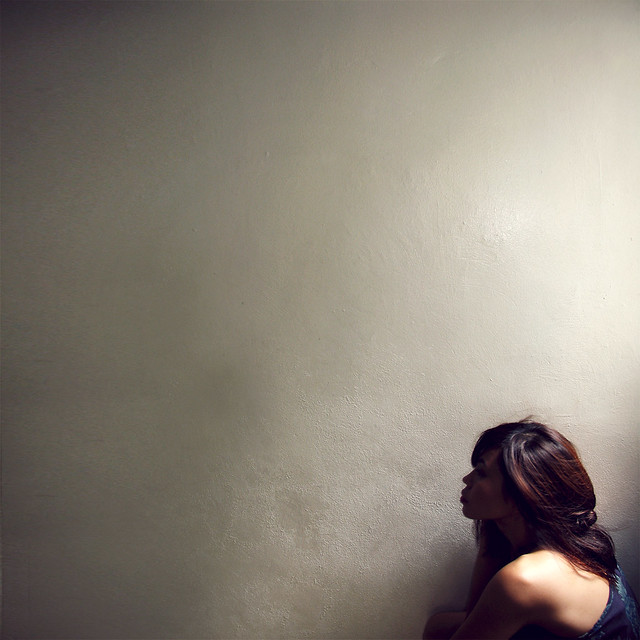
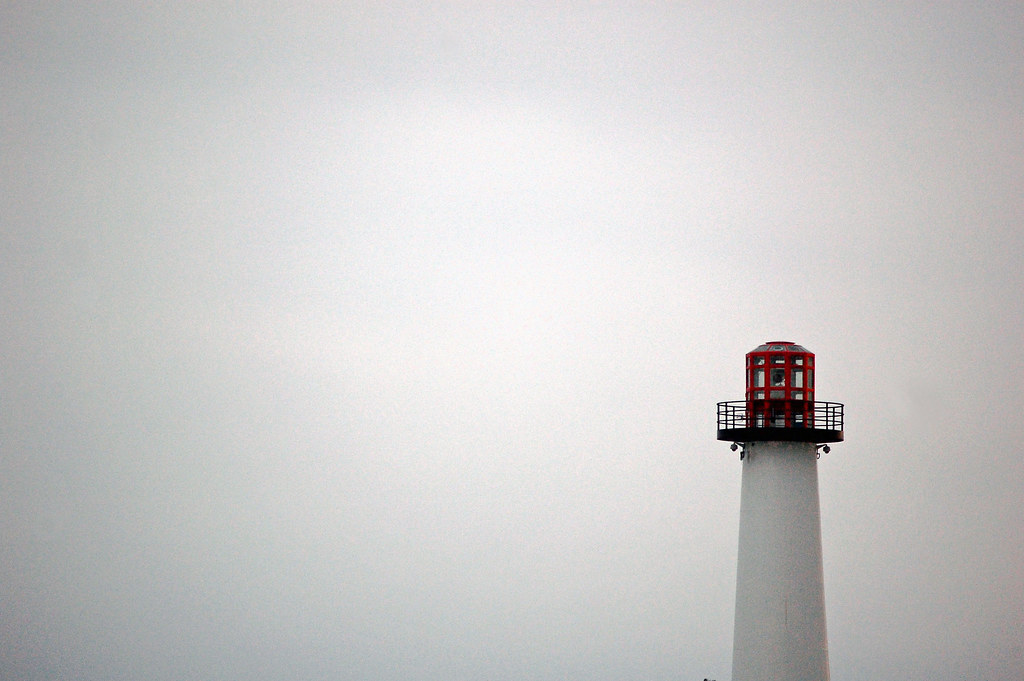
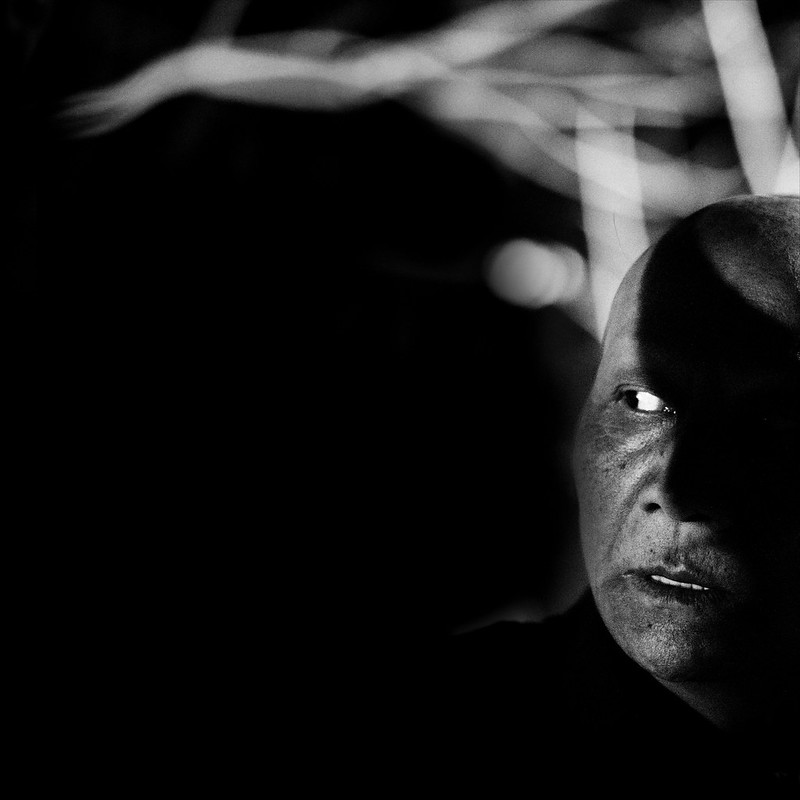
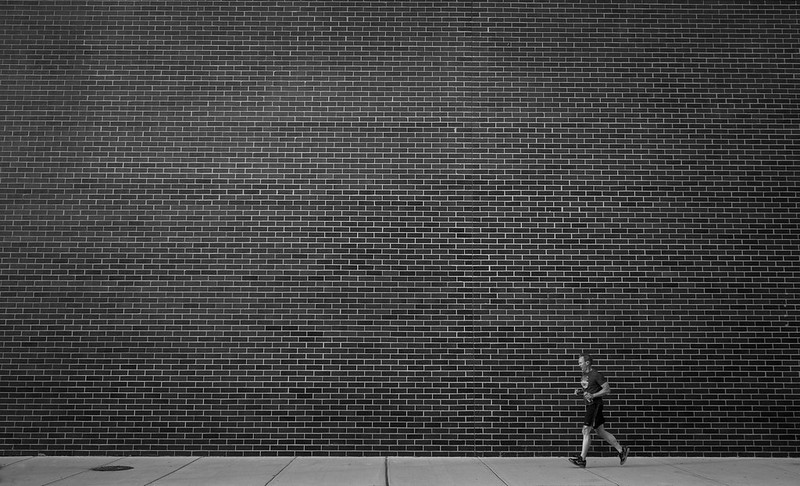
Negative space is the area that surrounds the main object in a photo, and can be utilized as a composition tool to convey sizes and shapes more effectively. It is a concept that has been used in art, design and architecture for a very long time, and is equally useful in photography. Using negative space can help you capture simple yet powerful images that stand out.

Negative space establishes and emphasizes the main subject (called the ‘positive space') of your image and draws the viewer's eyes to it, making it a more engaging composition. This post is a collection of photographs that use negative space to this effect. We hope that they inspire you to explore negative space as a composition tool and create some great photographs of your own.

If you'd like to get better at photographic composition and learn concepts that go beyond the basics, take a look at Kent DuFault's guide on advanced composition, but for now let's sit back and enjoy these photographs.

Photo by Helga Weber

Photo by Thomas Leth-Olsen

Photo by Alexander Mueller

Photo by Armando Maynez

Photo by Jonathan Kos-Read

Photo by Thomas Leuthard

Photo by Karen Borter

Photo by Matt McGee

Photo by Vinoth Chandar

Photo by Luis Alejandro Bernal Romero


Improve Your Photography Composition

If you would like to improve your photography composition and learn concepts that go beyond the basics, we recommend Photzy’s best-selling guide Advanced Composition for an in-depth training on the subject. With this guide, you will learn how to see light, shadow, lines, curves, repetition, juxtaposition and much more, and also develop the skills of anticipation, pre-visualization and timing. Click here now to check it out.

The post 10 Excellent Photos That Show You How Negative Space Can be Used Effectively for a Great Composition appeared first on Light Stalking.


PHOTOGRAPHY

PHOTOGRAPHY

via Light Stalking https://ift.tt/2kwTW5i

May 16, 2018 at 10:01PM