Stay up to date with latest news about technology, food, fashion, games, business and everything else that you need.

Showing posts with label TECH. Show all posts

Thursday, May 17, 2018

Bannon and Cambridge Analytica planned suppression of black voters, whistleblower tells Senate

https://ift.tt/2GpLtHc

Appearing before the Senate Judiciary committee today as part of the ongoing investigation of Cambridge Analytica and various forms of meddling in the 2016 elections, former employee and whistleblower Christopher Wylie said that the company and its then-VP Steve Bannon were pursuing voter suppression tactics aimed at black Americans.

Although Wylie insisted that he himself did not take part in these programs, he testified to their existence.

“One of the things that provoked me to leave was discussions about ‘voter disengagement’ and the idea of targeting African Americans,” he said. “I didn’t participate on any voter suppression programs, so I can’t comment on the specifics of those programs.”

“I can comment on their existence, and I can comment more generally on my understanding of what they were doing,” he explained under questioning from Sen. Kamala Harris (D-CA).

“If it suited the client’s objective, the firm [SCL, Cambridge Analytica’s parent company] was eager to capitalize on discontent and to stoke ethnic tensions,” read Wylie’s written testimony.

“Steve Bannon believes that politics is downstream from culture. They were seeking out companies to build an arsenal of weapons to fight a culture war,” he explained at another point in the session. He suggested questions on the nature of those weapons, and the specifics of any potential race-based voter suppression tactics, to be directed to Bannon.

That such a system might work, however, he did address.

“How specifically, then, did they target African American voters,” Sen. Harris had asked, “understanding as you do that the African American population is not a monolith? How did they then decipher and determine who was African American so they would target them in their intent to suppress the vote?”

“Racial characteristics can be modeled and I’m not sure about the studies that my colleague here was referencing but we were able to get an AUC score, which is a way of measuring accuracy for race that was .89 I believe,” Wylie answered.

AUC, he then explained, stands for “Area under the receiving operations characteristic. It’s a way of measuring precision, which [the .89 figure] means it’s very high.”

In other words, black voters could be identified based on their social media presence and other factors, despite the fact that the black community is, obviously, far from homogeneous.

It’s not particularly surprising that Bannon, who has aligned himself repeatedly with alt-right and white nationalist figures and movements, would be contemplating ways to decrease the number of people of color voting. But it is new that it was being pursued relatively openly under the Cambridge Analytica banner.

Sen. Harris and others requested any “evidence of the conduct you’ve described” Wylie may have.

Wylie also testified that Facebook, when it asked Cambridge Analytica to certify that it had deleted the data it was using in violation of the company’s rules, “did not require a notary or any sort of legal procedure. So I signed the certification and sent it back and they accepted it.”


TECH

TECH

via TechCrunch https://techcrunch.com

May 17, 2018 at 01:30AM
YouTube’s streaming music service is launching next week

https://ift.tt/2IsBGli


YouTube has announced that it’s launching YouTube Music – a new streaming service that brings millions of tracks and videos in both free and paid flavors – next week, on May 22.

The company says you’ll be able to find entire albums, covers, remixes, live versions, and artist radio stations in its new mobile and desktop apps. The app will also bring personalize your experience by surfacing tracks it thinks you might like on the home screen, and recommending playlists based on your listening history and location. Oh, and the search tool will also support esoteric queries or lyric lookups, similar to Google’s engine, like “that hipster song with the whistling.”

“It's both terrifyingly interesting and interestingly terrifying”

According to VICE, TNW Conference is quite the event

The free tier will be ad-supported, naturally – but if you’re already subscribed to Google Play Music or cough up $9.99 a month, you’ll get YouTube Music Premium, which allows for offline downloads, listening while the mobile app is in the background, and no ads.

It’s worth noting that Google was previously expected to replace Google Play Music with a YouTube-based service; it looks like that will indeed happen at some point, but it could take until 2019. So, for the time being, both services will be available.

That’s not all: there’s another subscription called YouTube Premium, which costs a bit more at $11.99 a month and brings YouTube Music Premium as well as access to all of the video platform’s content ad-free – including its original series and movies that were previously available to Red subscribers.

The new music service will see YouTube compete with the likes of Spotify, Apple Music, Pandora, Deezer, and its own Google Play Music. But it remains to be seen whether fans will take to it: on the one hand, YouTube has a huge library of content like alternative versions of songs that aren’t on other services, while rivals like Spotify boast a vibrant community and top-notch curation.

It’ll also be interesting to see what becomes of Google Play Music. While YouTube is set on killing it off at some point, it’ll need to secure all the necessary licensing approvals to make it available internationally.

YouTube Music will roll out on Tuesday, May 22, in the US, Australia, New Zealand, Mexico and South Korea. The company says it will subsequently become available in Austria, Canada, Denmark, Finland, France, Germany, Ireland, Italy, Norway, Russia, Spain, Sweden, Switzerland and the UK. You can sign up to be notified when the service arrives in your country on this page.

The Next Web’s 2018 conference is just a few days away, and it’ll be ðŸ’¥ðŸ’¥. Find out all about our tracks here.


TECH

TECH

via The Next Web https://thenextweb.com

May 17, 2018 at 08:29AM
Set Default Folder When Opening Explorer in Windows 10

https://ift.tt/2wQaTyc

After upgrading to Windows 10 recently, I noticed that whenever I opened Explorer, it would always show me Quick Access. I like the new Quick Access feature, but I preferred to have Explorer open to This PC instead.

For me, being able to access the different drives on the computer and my network devices was far more important than accessing frequently used folders or recently opened files. It’s a useful feature, but I don’t mind having to click once to access it.

In this post, I’ll show you how to change the default folder from Quick Access to This PC when opening Explorer. In addition, I’ll also show you a trick whereby you can set any folder to be the default folder when opening Explorer in Windows 10.

Set Default Folder to This PC

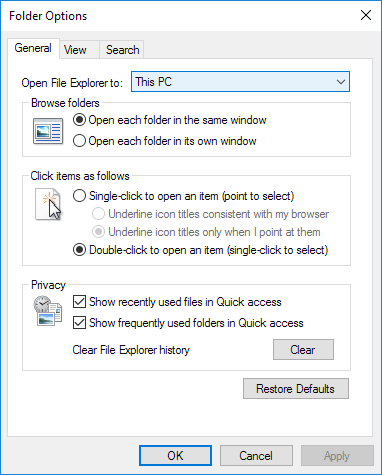
To change the setting, open Explorer, click on File and then click on Change folder and search options.

change folder search options

In the dialog that pops up, you should already be on the General tab. At the very top, you’ll see Open File Explorer to where you can select from This PC and Quick Access.

folder options windows 10

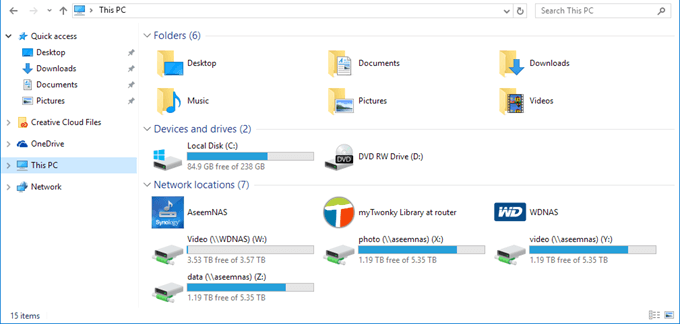
Just pick whichever folder you prefer and you’re good to go! Now when you open Explorer, you should see it open to This PC selected instead of Quick Access.

windows 10 this pc

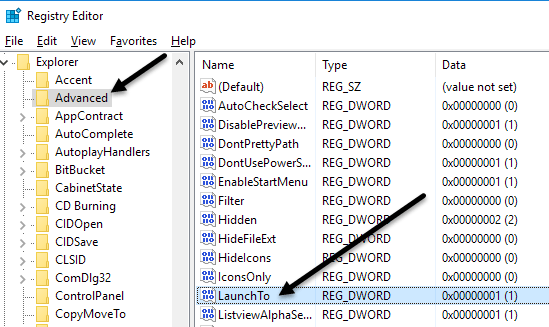
If you need to do this on many machines in a corporate environment, you’ll be happy to know that there is a registry entry that controls this setting also. Just navigate to the following key:

HKEY_CURRENT_USER\SOFTWARE\Microsoft\Windows\CurrentVersion\Explorer\Advanced

On the right hand side, look for a DWORD key named Launch To. 1 means This PC and 2 means Quick Access.

registry editor windows

Finally, let’s talk about how we can configure Explorer to open up to any folder as the default folder.

Set Any Folder as Default for Explorer

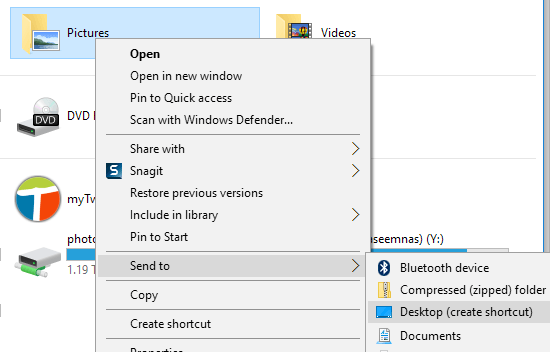
Since there really isn’t any official way to do this, we have to kind of hack Windows to get it to do what we want. I’ve tested it out and the process seems to work just fine. To get started, find your folder and create a shortcut to the folder on your desktop.

create desktop shortcut

For example, if I wanted to use the Pictures folder as my default folder, I would right-click on it, choose Send to and then click on Desktop (create shortcut). Next, we need to copy that shortcut into a special location in Windows. First, let’s open Explorer and go to that special location. Just copy and paste the following path into the address bar in another Explorer window:

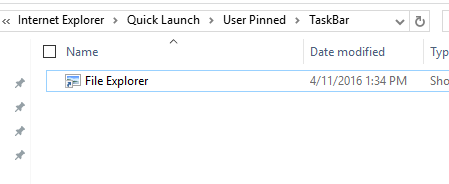
%APPDATA%\Microsoft\Internet Explorer\Quick Launch\User Pinned\TaskBar

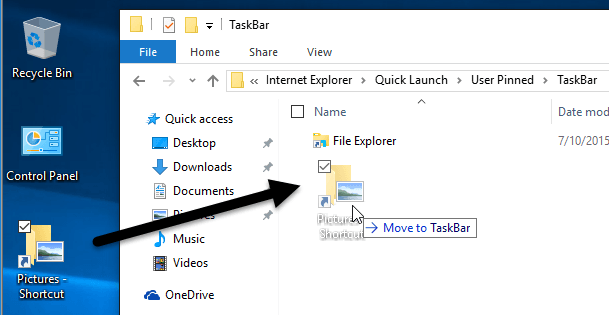
Make sure to press Enter after you paste the path into Explorer. Depending on what else is pinned to your taskbar, you might see shortcuts to several programs here, but you should always see a File Explorer shortcut.

drag shortcut

Now go ahead and drag the shortcut that we just created from your desktop into the special folder you have open in Explorer. Now we have to do one last thing. Go ahead and delete the File Explorer shortcut and rename the Pictures Shortcut to File Explorer. If you chose a different folder than Pictures, then change whatever the name of that shortcut is to File Explorer.

file explorer windows

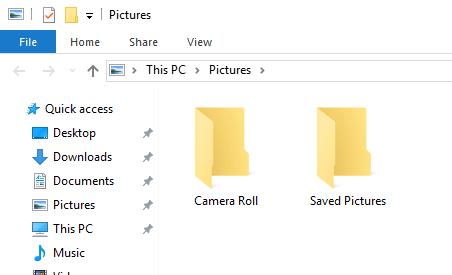
That’s about it! Now open File explorer from your taskbar and you should be viewing the contents of whichever folder you chose to be the default folder.

pictures folder windows

It’s worth noting that this little trick will only work when you click on the Explorer icon on your taskbar. If you open Explorer by double-clicking on This PC on the desktop or by clicking on Start and then File Explorer, you’ll either see This PC or Quick Access, depending on which option is chosen in the settings.

If you want to undo what we just did above, all you have to do is right-click on Explorer in the taskbar and choose Unpin from taskbar. After that, just drag the This PC icon from your desktop and drop it onto the taskbar again. This will create a new Explorer shortcut and it’ll work normally.

Pin Folders to Quick Access

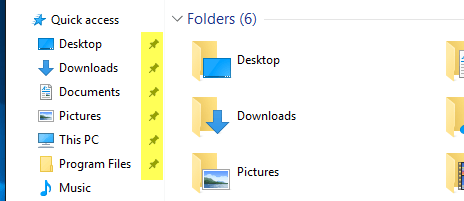
If you don’t like any of the two options above, you do have one other choice in Windows 10. You could use the new pinned folders feature that is associated with Quick Access. When you open Explorer, you’ll see a pin icon next to several folders under Quick Access.

pinned folders

The Desktop, Downloads, Documents, Pictures, This PC and Music folders are pinned by default in Windows 10. If you want to remove any of them, just right-click and choose Unpin from Quick Access.

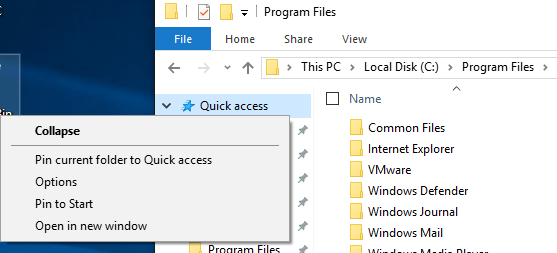
However, if you want one click access to any folder on your computer, navigate to that folder, then right-click on Quick Access and choose Pin current folder to Quick Access.

pin folder quick access

As you can see, this is how I pinned the Program Files folder to my Quick Access section. Using this method, you don’t have to resort to any hacks and you can also quickly access any folder on your system with two clicks.

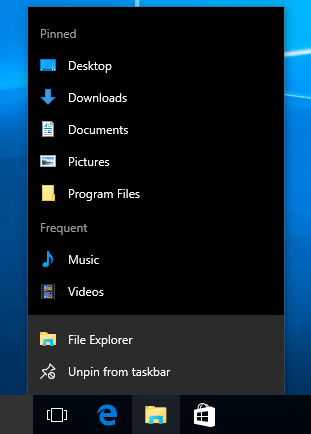
Lastly, you can also get to that pinned folder quickly by simply right-clicking on the File Explorer icon in your taskbar and choosing your pinned folder, which will show up in the jumplist.

explorer jump list

So in summary, if you want to change the default folder system-wide, you can only pick between This PC and Quick Access. If you use the second method involving the shortcut hack, then you have to use the shortcut from the taskbar.

Lastly, if you just need quick access to a folder, try using the pin to Quick Access option as that will also be system-wide and will remain in the left-hand side even as you browse through other folders. If you have any questions, post a comment. Enjoy!


TECH


via Online Tech Tips https://ift.tt/2x1MZxu

May 17, 2018 at 01:58AM